You want to run ads on Snapchat but you're not sure where to start. The platform has over 400 million daily users, mostly Gen Z and millennials with real buying power. Getting your products in front of them could transform your business. But when you search for Snapchat advertising, you get overwhelmed with options and unclear instructions.
Snapchat Ads Manager is your gateway to creating and running campaigns on the platform. It's a free tool that lets you build ads, target specific audiences, set budgets, and track performance. You don't need a massive advertising budget or a marketing degree to use it. The interface is simpler than you think.
This guide walks you through everything from creating your account to launching your first campaign. You'll learn what information you need before you start, how to set up billing, and how to create ads that actually convert. By the end, you'll know exactly how to manage and optimize your Snapchat advertising to get results.
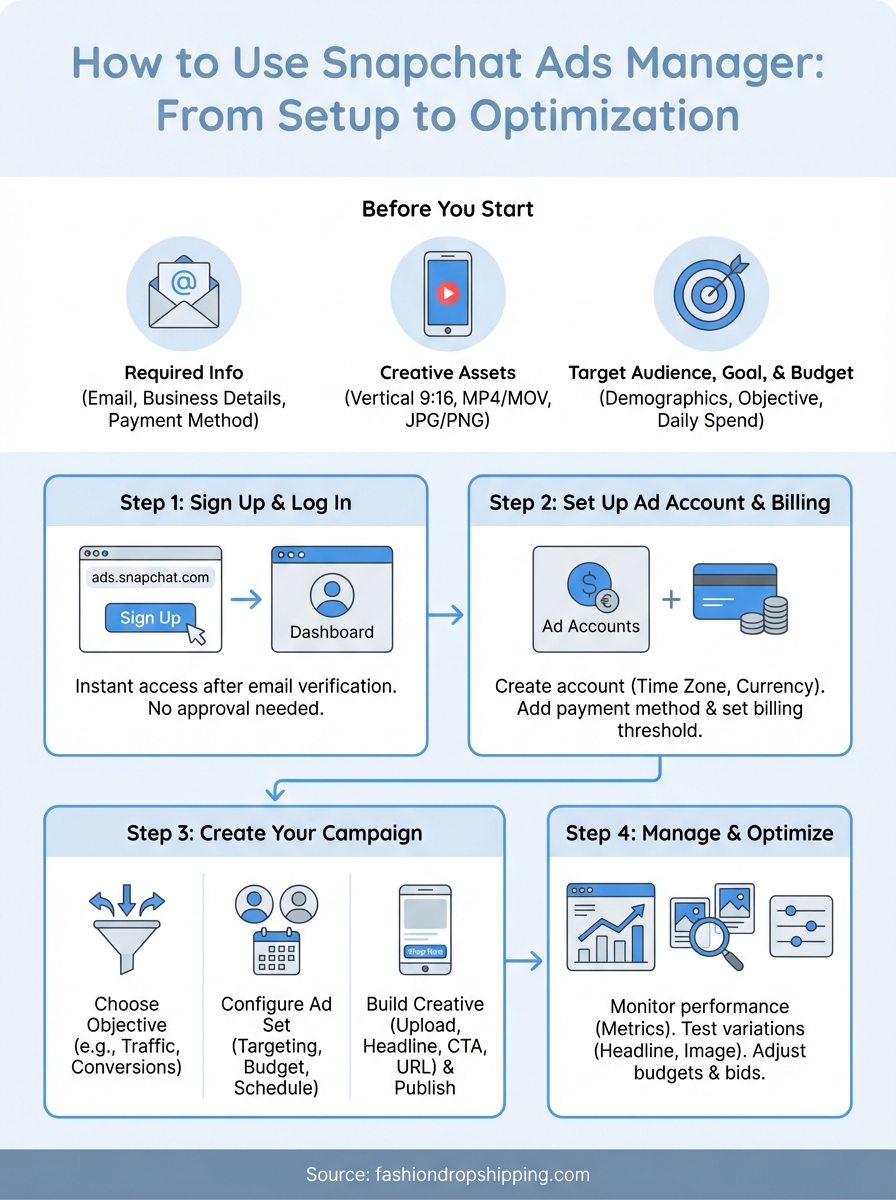
Getting your information ready before you start saves time and prevents interruptions during setup. Snapchat won't let you launch campaigns until you complete every required field, so gathering everything upfront keeps the process smooth.
You need a valid email address that you'll use to manage your account. Snapchat also requires business details including your company name, address, and phone number. These details appear on your invoices and help verify your account.
Have a payment method ready. Snapchat accepts major credit cards and debit cards. You can't run ads without adding payment information first, even if you're just testing the platform.
Prepare your ad creative before you log in. This includes images or videos that meet Snapchat's specifications: vertical format (9:16 ratio), MP4 or MOV files for video, and JPG or PNG for images. Your creative should be ready to upload without needing additional editing.
Know your target audience demographics before you start. This speeds up the campaign setup process significantly.
Think about your campaign goal and budget. You'll choose objectives like awareness, traffic, or conversions, and set daily spending limits. Having these numbers decided helps you move through setup faster.
The signup process takes less than five minutes and doesn't require approval from Snapchat before you start building campaigns. You create your account, verify your email, and gain immediate access to the full platform.
Navigate to ads.snapchat.com in your browser. Click the "Sign Up" button in the top right corner. Enter your email address, create a password, and add your business name. Snapchat sends a verification email within seconds. Click the link in that email to activate your account.
Once verified, you can access Ads Manager without waiting for manual approval.
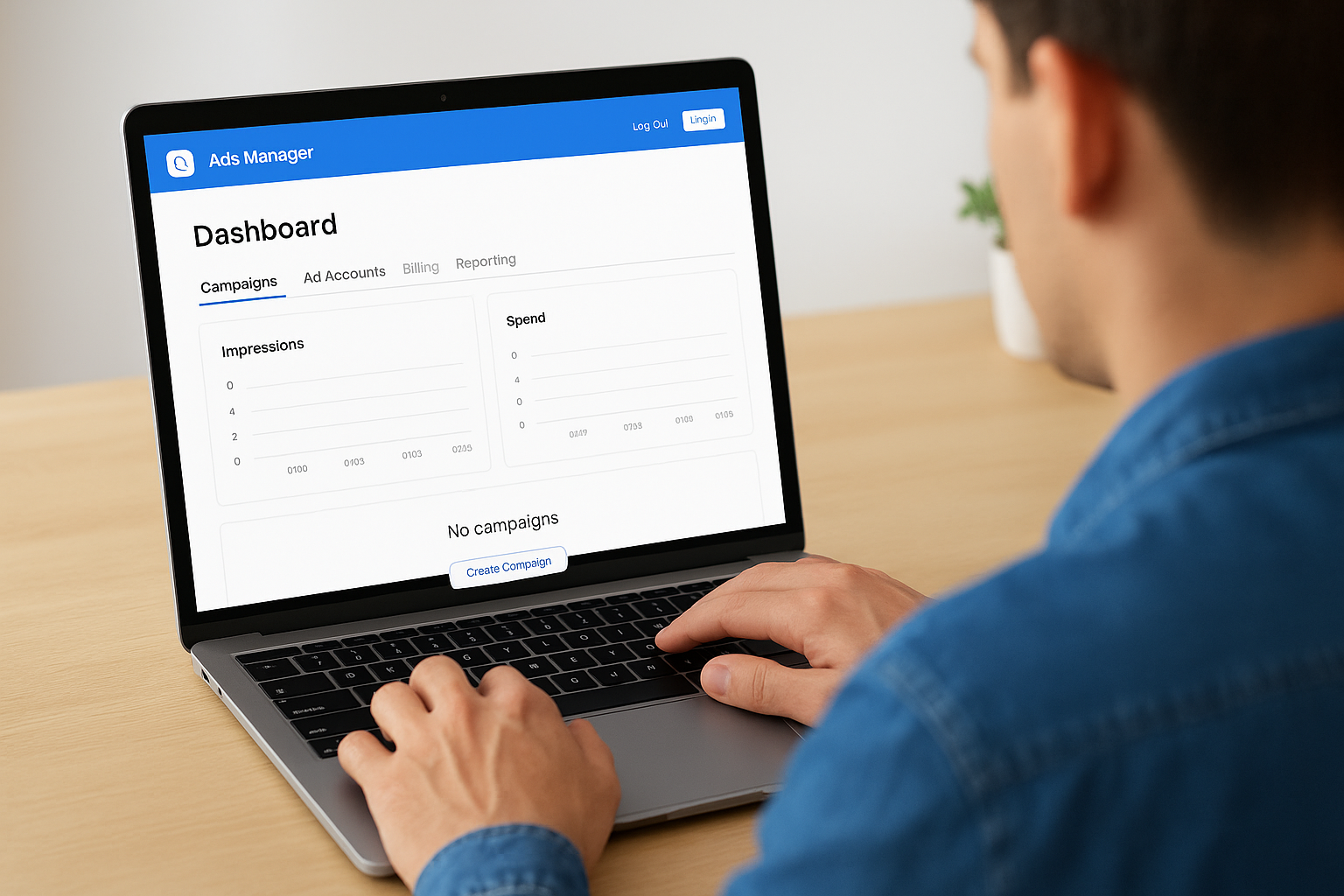
Return to ads.snapchat.com and click "Log In" using the credentials you just created. The snapchat ads manager dashboard loads immediately, showing your account overview. You'll see empty charts and zero campaigns since you haven't created anything yet. The navigation menu on the left gives you access to campaigns, ad accounts, billing, and reporting tools.
Your ad account is the container for all your campaigns, budgets, and billing information. The snapchat ads manager requires you to complete this setup before you can launch any ads. This step establishes your payment structure and ensures Snapchat can charge you correctly for ad spend.
Click the navigation menu in the top left corner and select "Ad Accounts." The platform prompts you to create your first account if you haven't already. Enter a descriptive name that identifies your business or project. You can create multiple ad accounts later if you manage different brands or clients.
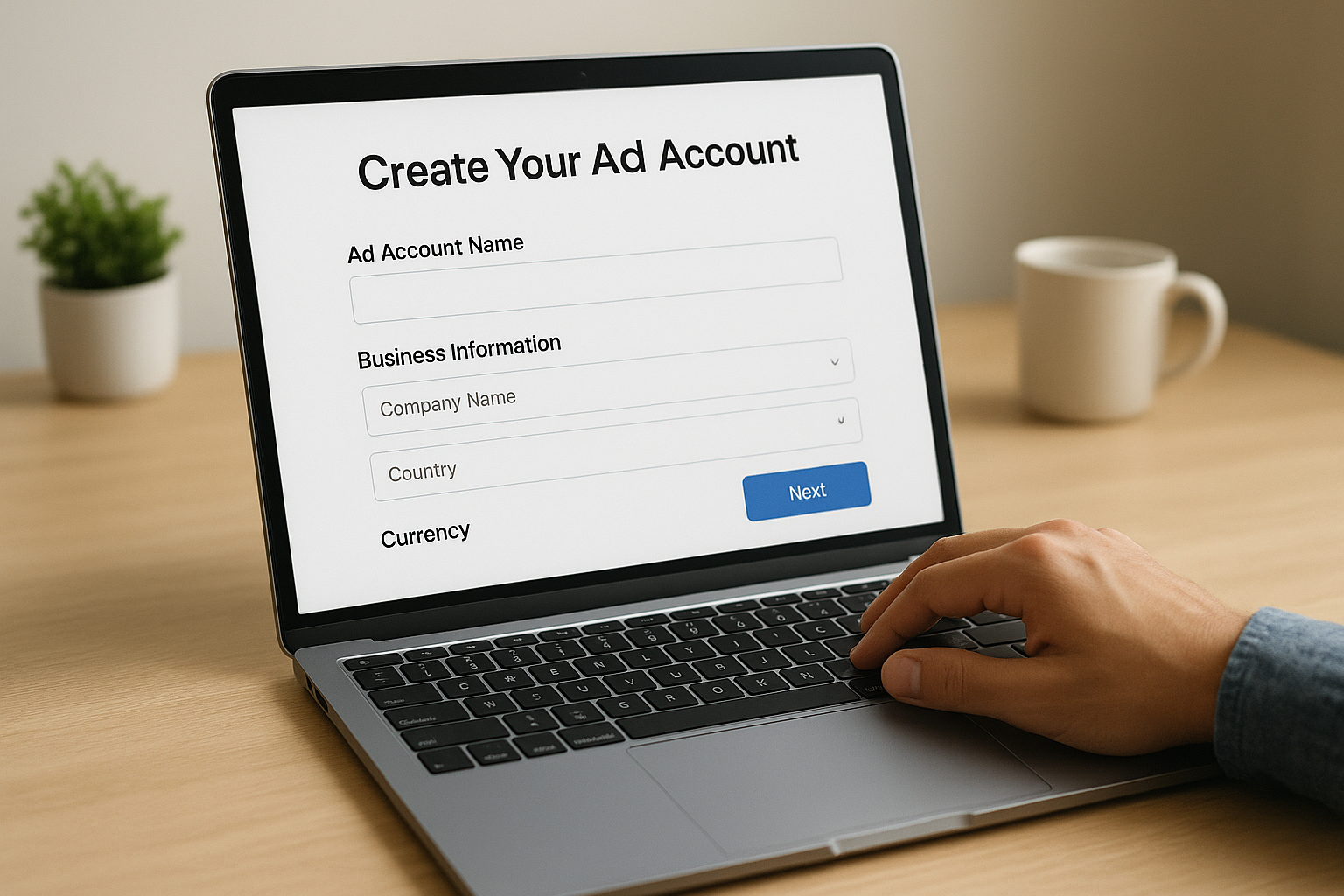
Fill in your business information including company name, country, currency, and time zone. Choose your currency carefully because you cannot change it after account creation. Your time zone determines when your daily budgets reset and affects reporting schedules.
Navigate to the billing section from the left menu. Click "Add Payment Method" and enter your credit or debit card details. Snapchat accepts Visa, Mastercard, American Express, and Discover cards in most regions.
Snapchat charges your card automatically when you reach your billing threshold or at the end of each month, whichever comes first.
Set your billing threshold between $50 and $500 depending on your expected monthly spend. Lower thresholds mean more frequent charges but better budget control.
Creating your first campaign involves three layers: the campaign level where you set objectives, the ad set level where you define targeting and budgets, and the ad level where you build your creative. The snapchat ads manager guides you through each step with clear prompts and requirements.
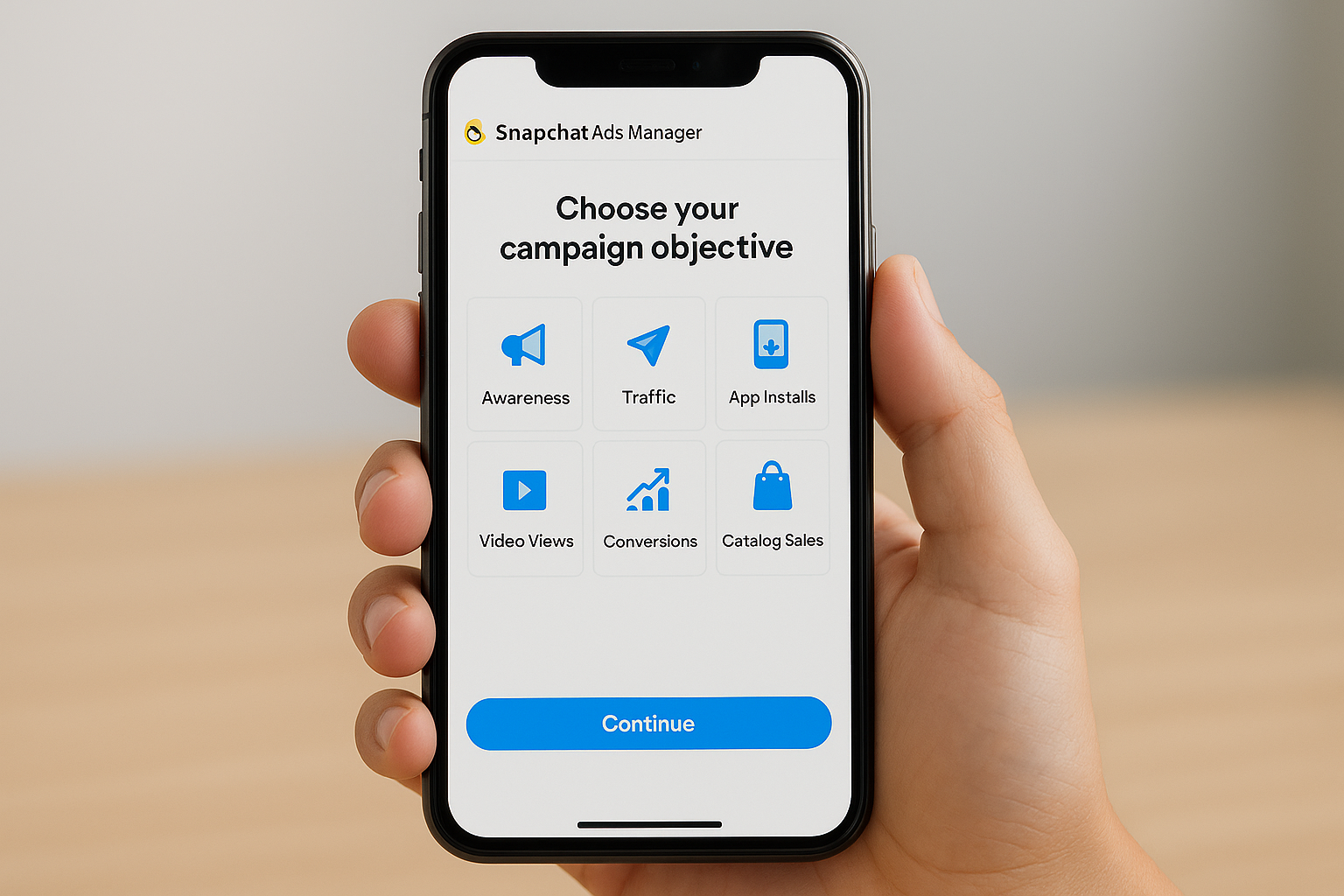
Click the "Create Ads" button on your dashboard. Snapchat displays six objective options: Awareness, Traffic, App Installs, Video Views, Conversions, and Catalog Sales. Pick the objective that matches your business goal. For fashion dropshipping, Traffic or Conversions work best because they drive visitors to your store.
Name your campaign something descriptive like "Spring Collection Launch" or "January Traffic Test." This naming helps you track performance when you run multiple campaigns simultaneously. Set your campaign spending limit if you want a hard cap on total spend.
The ad set defines who sees your ads and when. Start by selecting your target audience. Choose demographics including age range, gender, and location. Snapchat lets you target specific countries, states, or even zip codes.
Add interest targeting to reach users who engage with fashion content. Select categories like clothing, fashion brands, or shopping. You can also create lookalike audiences based on your customer data later.
Set your daily budget between $5 and $10 minimum to ensure your ads get enough delivery volume for testing.
Pick your ad placement (Snapchat recommends automatic placement) and schedule. You can run ads continuously or set specific start and end dates.
Upload your vertical creative (images or videos in 9:16 format). Add your brand name, a clear headline under 34 characters, and a call to action like "Shop Now" or "Learn More." Attach your destination URL where you want users to land after they swipe up on your ad.
Preview your ad on different devices to confirm it looks correct. Click "Publish" to submit your campaign for review. Snapchat typically approves ads within a few hours if they meet community guidelines.
Your campaign doesn't end after you hit publish. The snapchat ads manager provides real-time data that shows which ads perform and which waste money. Checking your metrics daily during the first week helps you catch problems early and scale what works. Your dashboard displays key metrics including impressions, swipe-up rate, cost per result, and total spend.
Navigate to the campaigns tab in your dashboard to view performance data. Focus on metrics that match your objective. If you chose Traffic, track swipe-up rate and cost per swipe. For Conversions, monitor conversion rate and cost per conversion. Check these numbers every 24 to 48 hours during your first week.

Ads need at least 500 impressions before you can draw meaningful conclusions about their performance.
Export your data to compare different campaigns and ad sets. Click the "Export" button above your campaign list to download a CSV file with detailed breakdowns.
Create multiple ads within each ad set to test what resonates with your audience. Change one element at a time: swap your headline, test different images, or adjust your call to action button. Run each variation for three to five days before making decisions.
Duplicate your top-performing ads and test new audience segments. The platform lets you clone entire campaigns or individual ad sets, which speeds up your testing process significantly.
Increase budgets on ad sets that deliver results below your target cost. Raise spending by 20 to 30 percent at a time to avoid disrupting delivery. Pause ads that cost more than double your target without converting.
Lower your bid cap if you're spending your budget too quickly without reaching your audience size goals.
The snapchat ads manager gives you direct access to a highly engaged audience without requiring a massive advertising budget to get started. Begin with $5 to $10 daily and scale up once you identify winning ads. Your first campaign teaches you exactly how the platform works and what your specific target audience responds to best.
Building a fashion dropshipping store on Shopify pairs perfectly with Snapchat advertising because both platforms target the same demographic. Launch your free Shopify store to sell fashion products and connect it to your Snapchat campaigns. Test different products and creatives until you find combinations that generate consistently profitable returns.

 Open FREE Shopify Account